| rgcAudio Triangle II version 1.0 Release Notes / User Manual |
"Freeware, mmm... can't be that good..."
Just hear
how it sounds.
Triangle II is a top VST instrument which uses many technologies from
our Pentagon I Performance Oriented Synthesizer, acclaimed in most music
publications and with a myriad of positive feedback comments from users
all over the world.
Triangle II also introduces new experimental technologies from rgcAudio, like its new ultra-smooth filters, tuned-noise generator, extended effects section and others. Most of those technologies are still unique to rgcAudio Instruments, and particularly to Triangle II.
As a result,
we think T2 is the ultimate bass-lead tool for contemporary music production,
no matter the price.
Just hear it, tweak it, make music with it.
| Technical Specifications |
 |
2 Oscillators, one SubOscillator and a Tuned Noise generator. |
|
7 fully bandlimited waveforms per oscillator, detune, transpose and table shift controls. |
|
PWM in both oscillators, with manual width control or controllable by LFO. |
|
MULTI mode, which turns oscillator 1 in eight individual oscillators, with multi detune control. |
|
SYNC mode. |
|
Portamento with fixed and variable time, fingered or normal, and selectable effect on pitch bend. |
|
DC Burst generator to add punch to attack stage. |
|
Adjustable range Pitch Bend. |
|
Main Tune and Random Tune controls. |
|
2-pole LPF/HPF/BPF, and ultrasmooth 4-pole LPF/HPF plus a high resonance 4-pole LPF filters. |
|
3 dedicated Pitch, Filter and Amplifier Envelope Generators. |
|
3 dedicated Pitch, Filter (PWM) and Amplifier LFO's. |
|
4 channels mixer |
|
Bass Eq control with adjustable center frequency |
|
Hard Drive effect |
|
Decimator effect |
|
Aggressive 6-Voice Chorus mono/stereo effect, controllable by Envelope Generator. |
|
Stereo/Ping delay effect, BPM sync'able to host tempo. |
|
Reverb effect with size control and two rendering modes. |
|
Stereo Spread effect. |
|
Four playing modes: Fingered, Low and High priority note Legato, Full Legato. |
|
All controls (67 knobs, 19 selectors), in front panel, no paged interface. |
|
Full MIDI Learn operation, with selectable min/max/reverse status. |
|
Multiple controls can be assigned to MIDI cc's, same MIDI cc can be assigned to several controls. |
|
128 program capacity, 128 factory presets instantly available via right-click. |
|
Up/Down program controls. |
|
Built-in program/bank naming, saving and loading capabilities (.fxb/.fxp) |
|
User definable bank for auto-loading on startup. |
|
Circular or Linear knob mode, with selectable inertia. |
|
Full note range preview ribbon, which sends MIDI messages to host. |
ASIO microhost
Triangle II includes a microhost which will allow playing it in stand-alone mode in ASIO equipped audio boards. The microhost will also enable direct saving-to-wav audio from Triangle II, in 16 or 32-bit wav files for uncompromised quality.
Suggested System
As some of the new technologies on T2 are still in a early development stage, in current status they use more CPU than any of other rgcAudio synthesizers. We recommend at least:
|
Any CPU with 500MHz of speed to play T2 with decent latencies and no crackling, plus 100-150Mhz for every new instance you would like to use depending on fx settings (see below "Notes on Reverb utilization"). Also, Athlons tends to be faster than Pentiums for T2 use at same clock speed. |
|
Any ASIO soundcard for using the stand-alone microhost. |
|
A velocity-sensitive MIDI keyboard with pitchbend, modulation wheel and aftertouch capabilities, a MIDI knob/slider controller strongly suggested. |
|
Subwoofer. Definitely needed to perceive the unmatched Low-End of T2 in A/B comparisons. |
|
Tolerant neighbors and rock-solid roof. rgcAudio won't be able to solve issues concerning this issues due utilization of T2 in basslines. |
NOTE: All
internal presets are adjusted for Performance, instead of Sequence. When
sequencing, a normal case is the sequencer/tracker sending midi Velocities
of 127 most of the time, loosing most of the expressivity and nuances
of the program. If sequencing/tracking only is your proposal, you might
need to tweak the velocity sensitivity knobs accordingly.
Similarly, aftertouch/modulation/pitchbend and portamento modes are mostly
useable by realtime performance, but they can be sequenced as well. Just
keep in mind that the internal presets have every parameter already set
for performance, and tweak them as desired.
rgcAudio does not include sound effects ("sqwueek", "grwwwl", "pfewwwww") as factory presets.
Triangle II GUI
T2 has a one-panel Graphical User Interface, and the signal flow is exactly as standard English reading: Left to Right, Top to Bottom. After a few minutes of programming, you can discover 99% of the possibilities of it. However, the 1% remaining is really the best part, which will make your music and sounds unique/different, and it can only be obtained by fully reading this brief manual. You are free to choose which is best for you.
There are 2 waveform selectors, 67 knobs, 14 ON/OFF lights, three Text Selectors (Filter Mode, Chorus MONO/STEREO, Delay STEREO/PING), plus a Options Menu which appears when clicking the Triangle II logo.
Knob mode can be selected via Options Menu, to be Linear or Circular, with or without inertia. Setting will be remembered and used in all subsequent T2 instances.
At the bottom, there is the Preview Ribbon. It allows playing the full MIDI note range (0-127) by clicking and dragging on it. This allows for adjusting release/portamento times very easily.
Programs can be selected by right-clicking anywhere on screen, as usual in all rgcAudio instruments. At the top-right corner, there is a up-down arrow selector to increase/decrease the program number. Clicking on the Program Name you can enter/change the name.
There will appear a menu by shift-right clicking any knob for MIDI Learn. Check 'MIDI Operation' for more details.
| Oscillators Section |
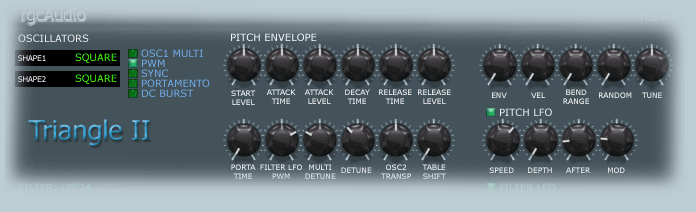
T2 features
three very sophisticated oscillators based in wavetables.
The use of one wavetable per MIDI note for most used waveforms like Saw
and Square allows for uncompromised quality, with every note representing
a exact model (zero transposing artifacts), at same time that allows using
"vintage" modeled waveforms, as opposite as "perfect/trivial"
waveforms which sounds too bright and lacking any warmness.
Each oscillator can use one of the following seven waveforms:
1 - SAW (vintage-model)
2 - SQUARE (vintage-model)
3 - HARMONICS 2
4 - HARMONICS 3
5 - HARMONICS 4
6 - HARMONICS 5
7 - SINE
Saw and Square
are the most traditional synth waveforms, in this case calculated with
a complex model which recreates every imperfection due exponential charge/discharge
and coupling capacitors in Vintage Synthesizers.
Harmonics 2-5 are mathematically calculated waveforms with only harmonics
multiple of n, being n a number between 2.5 and 5. Sine is a typical sinewave.
The interval
between Osc1 and Osc2 can be adjusted with the OSC2 TRANSPOSE knob, in
a ±24 semitone range.
The DETUNE knob controls the amount of detuning for oscillator 2. It's
a common programming practice to increase detuning a bit to create more
complex (fat) sounds.
Suboscillator
The suboscillator will follow the Oscillator 1, at a one octave lower pitch. It will have the same waveform, except that it won't do PWM nor MULTI. With its own mixer control, its volume can be adjusted or even turned fully off.
PWM
SAW and SQUARE
can be chosen to use PWM.
When SQUARE waveform is selected and PWM is On, the pulse width can be
manually adjusted using the FILTER LFO PWM knob, from 0 to 100% (normal
square). If Filter LFO is turned On, the PWM will be controlled by the
Filter LFO, and FILTER LFO PWM knob will control the modulation amount.
When SAW waveform is selected, no pulse will happen, but a very interesting phase shift will affect the SAW waveform.
OSC1 MULTI
Oscillator
1 can be turned to MULTI mode with the OSC1 MULTI On/Off light.
When OSC1 MULTI is On, oscillator 1 will behave as eight individual oscillators
with same waveform. The detune amount of the MULTI mode can be adjusted
with the MULTI DETUNE knob, to create unison oscillator effects.
NOTE: When OSC1 MULTI and PWM are both on, you will have eight pwm'ed oscillators, plus osc2 and subosc. While this might lead to very interesting textures, keep an eye on your CPU meter.
SYNC
When SYNC
mode is on, oscillator 2 will restart its phase cycle at same time as
oscillator 1. With a fixed frequency for oscillator 2, this effect is
not interesting generally. That's why when SYNC mode is On, the Pitch
Envelope Generator will only affect Oscillator 2.
Interesting new and typical sync effects can be obtained this way.
Table Shift
This control
will shift the tables used to generate the waveforms down from 0 to 24
tables. Imagine this as a "filter without a filter". Different
effects can be obtained adjusting this control for different waveforms.
NOTE: Effect will be more noticeable with high cutoff settings.
Portamento
When Portamento is On, the transition between subsequently played notes will be continuous and slow instead of instantaneous. There are four portamento modes in T2:
| Fingered, Variable Time | The most commonly used mode by keyboard players, and the default mode. When in this mode portamento will only be applied to notes played legato, and not to notes played staccato. The time for the effect will be longer as higher the note interval between adjacent notes. |
| Fingered, Fixed Time | Portamento
will only be applied to notes played legato, and not to notes played
staccato. The time for the effect will be the same no matter the interval between played notes. |
| Normal, Variable Time | Portamento
will be applied to all notes. The time for the effect will be longer as higher the note interval between adjacent notes. |
| Normal, Fixed Time | Portamento
will be applied to all notes. The time for the effect will be the same no matter the interval between played notes. |
Portamento
Time can be adjusted with the PORTA TIME knob from 0 to 2s, with the first
(most used) 0.2 seconds at the half of the knob.
NOTE: Portamento Time for fixed and variable will be equal with a one-octave
interval (12 semitones).
Pitch Bend, Random Tune, Main Tune
T2 responds
to Pitch Bend messages, and the range for Pitch Bend can be adjusted from
0 to 12 semitones.
The Pitch Bend can be affected by the Portamento effect, when the Portamento/Bend
option in Options Menu is On. This mode is also useful for wind/guitar
controllers to smooth the bend operation, by setting this control on and
choosing a very fast Portamento Time.
Random Tune will generate a new random tuning every Note On, emulating the tuning instabilities of early analog synthesizers.
Main Tune is used to tune T2 to match the other instruments in your set. As the DETUNE control only affects Oscillator 2, it's also a common practice to turn Main Tune a bit down to center the detune interval.
DC Burst
DC Burst is a model which recreates the exponential capacitor load which happen in analog drum machines on Note On. This classic "pop" sound, results in a punchy attack when added to leads/basses, which is very useful in many circumstances.
Pitch Envelope Generator
This is the classic T1/S1/P1 pitch envelope generator, featuring Start Level, Attack Time, Decay Time, Release Time and Release Level controls, plus Envelope amount and Velocity amount controls.
| START LEVEL | The initial level of the pitch. When Envelope Amount is maxed, the range is ± 1 octave |
| ATTACK TIME | The time it takes the pitch to reach Attack Level, from 0 - 5s. |
| ATTACK LEVEL | The level the pitch will reach after Attack Time. |
| DECAY TIME | The time it takes the pitch to reach Sustain Level (standard note pitch) after attack, from 0 - 5s. |
| RELEASE TIME | The time it takes the pitch to reach Release Level after Note Off, from 0-5s. |
| RELEASE LEVEL | The level the pitch will reach after Note Off. |
| ENV | The amount of effect of the Pitch Envelope Generator on the pitch. When maxed, the range is ± 1 octave. |
| VEL | The Pitch Envelope Generator variation with Note On velocity, from 0 - 7 semitones. |
Pitch LFO
Pitch LFO will add a "vibrato" effect by shifting the main oscillators center frequency. It features following controls:
| ON/OFF | Turns the LFO On/Off. |
| SPEED | The vibrato speed, from 0.01 to 20Hz |
| DEPTH | The vibrato amount, from 0 to ±50 cents. |
| AFTER | The vibrato amount when MIDI Aftertouch messages are received, from 0 to ±50 cents. |
| MOD | The vibrato amount when MIDI Modulation Wheel messages are received, from 0 to ±50 cents. |
Pitch LFO waveshape is Sine.
|
Filters Section |

The multiple filters on T2 ranges from very soft 2-pole 12dB/oct filters to the new ultra-smooth 4-pole 24dB/oct filters. A dedicated Envelope Generator with Amount and Velocity controls plus a dedicated LFO for cutoff control offers all the typical possibilities in a subtractive synth, with a new quality level.
Filter
Type
There are 6 different filter types in T2, which can be selected by clicking on the FILTER label. We assume you are already familiar with a filter functionality, so we won't explain here what is the difference between LowPass, HighPass and BandPass.
| LPF24 | The new 4-pole filters. This filters feature a new variable-resonance mode suitable for low to medium resonance, emphasizing the partials near the cutoff in a very unique way. Most of the factory presets uses this mode. |
| HPF24 | The highpass version of above filter. |
| LPF12 | 2-pole 12dB/oct lowpass filter with variable resonance. |
| HPF12 | 2-pole 12dB/oct highpass filters with variable resonance. |
| BPF12 | 2-pole 12dB/oct bandpass filters with variable resonance. |
| LPF24-hiRez | This
is the new 4-pole filter, but with a very extended resonance range,
and output level normalized. Used mostly to create the "whistle"
resonant effects or "theremin" like effects in old analog
synths. NOTE: Check factory program 'theremine', where cutoff is assigned to aftertouch. |
Cutoff, Resonance
The cutoff
control in T2 covers the full audible frequency range, without any "hidden"
or "darkened" high end, due there is absolutely no aliasing
to hide coming from oscillators section. So, it's equally possible to
create powerful basslines or bright leads/hoover-like sounds.
Cutoff knob centerpoint is 400 Hz.
Resonance control adjust how much the frequencies in the neighborhood of the cutoff will be affected, higher settings resulting in a more aggressive boost. The new 4-pole filters will very this setting dynamically with cutoff in a very complex way, which results in more average output level when sweeping.
Filter Envelope Generator, Keyboard Scaling
The Filter Envelope Generator consist of the typical Attack, Decay, Sustain and Release controls, plus the Envelope amount and Velocity amount controls.
| ATTACK TIME | Time for the cutoff to raise maximum, as adjusted by the envelope amount control (Env), from 0 to 10 s. |
| DECAY TIME | The time it will take the cutoff to decrease to Sustain Level, from 10ms to 30s. |
| SUSTAIN LEVEL | Definitive cutoff level while the note remains off, as a value added to Cutoff knob. |
| RELEASE TIME | The time it takes to the cutoff to decrease to Cutoff knob setting after Note Off. |
| ENV |
Amount of Filter Envelope Generator which will affect the cutoff. |
| VEL | Amount of Filter Envelope Generator which will affect the cutoff regulated by Note On velocity. |
The keyboard scaling control (Keyb), adjusts how much the cutoff is affected by note number, from 0 to 200 cents.
Filter Aftertouch, Modulation
The cutoff of the filter can be directly affected via Aftertouch or/and Modulation wheel messages in a selected amount:
Aftertouch:
Adjusts the cutoff variation with Aftertouch messages. A special aftertouch
curve is used to fit most keyboards response.
Modulation: Cutoff variation with Modulation Wheel messages, from 0 to
full spectra, in logarithmic form.
Filter LFO
Filter LFO will add move the cutoff frequency in a cyclical way. The Filter LFO features the following controls:
| ON/OFF | Turns the LFO On/Off. |
| SPEED | The LFO speed, from 0.01 to 20Hz |
| DEPTH | The cutoff variation amount, from 0 to ±50 cents. |
| AFTER | The cutoff variation amount when MIDI Aftertouch messages are received, from 0 to full spectra. |
| MOD | The cutoff variation amount when MIDI Modulation Wheel messages are received, from 0 to full spectra. |
Filter LFO waveshape is Sine.
Tuned Noise Generator
T2 features a new Tuned Noise Generator, which is a noise generator followed by a special filter which will follow the played note. In this way, the noise generator becomes a very useful tool for percussive effects, not a "wind-and-sea-only" noise generator anymore. Naturally, the wind and sea can still be obtained...
|
Amplifier Section |

Mixer
The Mixer has controls for the two main oscillators, the suboscillator, and the tuned noise generator. With it you can mix the components to suit the specific needs of any particular sound.
Amplifier Envelope Generator
The Amplifier Envelope Generator is composed by the 4-stage Attack, Decay, Sustain and Release typical generator:
| ATTACK TIME | The time it takes to the volume to reach full amplitude. |
| DECAY TIME | The time it takes to the volume after attack to reach sustain level. |
| SUSTAIN LEVEL | Final level which the volume will take after Note On. |
| RELEASE TIME | The time it takes to the volume to decrease to zero again after Note Off. |
Velocity,
Aftertouch
The volume
variation with velocity can be adjusted in T2 using the Vel knob.
Aftertouch will regulate how the volume is affected by Aftertouch Messages.
NOTE: Aftertouch operation is completely smoothed, no clicks will occur when controlling volume via Aftertouch.
Amplifier LFO
Amplifier
LFO is generally used to generate a tremolo effect, variating the volume
in a cyclical way.
T2 includes the ability to route the Amplifier LFO to a AutoPanner, to
move the sound in the stereo field in a cyclical way.
| ON/OFF | Turns the LFO On/Off. |
| SPEED | The LFO speed, from 0.01 to 20Hz |
| DEPTH | The volume variation amount. |
| AFTER | The volume variation amount when MIDI Aftertouch messages are received. |
| MOD | The volume variation amount when MIDI Modulation Wheel messages are received. |
| PAN | The amount of stereo panning effect which will be added to the sound. |
Amplifier LFO uses a Sine waveshape.
| Effects Section |

rgcAudio
was one of the first VSTi manufacturers who introduced built-in effects
in its synthesizers. However, we are not the owners of the innovation
here... this is just a replica of what hardware synthesizers have been
doing during years.
Naturally,
the effects could be added by adding external plugin processors, with
even more expanded sonic possibilities.
The built-in effect section in T2 has the following advantages though:
- Some
module interaction isn't possible (ie Reverb lines modulated by Amplifier
EG Attack, or Chorus EG mode).
-
Several (6) plugins would be needed to emulate the T2 built-in multieffect
unit.
- Parameters of the built-in effect unit are stored in a per-preset basis.
- Effect parameters can be MIDI programmed, which would only be possible
if all the external plugins would have this capability.
- Sharing songs doesn't require the other party having the same full set
of effects installed.
- Real-time performance via stand-alone host doesn't need extern effect
processing.
- Automation of parameter variation on a song much simplified. Notice
that some effect plugins still don't have this possibility.
- Replacing of effect settings on MIDI Program Change instantaneous.
- It isn't needed to navigate among several windows to tweak the sound.
- Timing precision due buffer filling much increased.
- CPU usage decreased, no inter-dll function calls, etc.
The effect section in T2 is a step forward in this integration concept. All effects can be turned fully off, saving all CPU usage.
Keep in mind that for most field-useful programs, most components of the Effects Section should be turned off. The factory presets just show you the capabilities of the instrument, but most of them use extreme settings for this, just a creative exercise. We suggest to keep the fx processing to a minimum for multiinstance work.
Hard
Drive
The hard
drive effect generates a distortion-like effect very suitable for acid-like
basslines, or to spice-up a lead.
When Hard Drive light is on, the amount of the effect applied to individual
oscillators is regulated by the Mixer knobs. Set them low to add soft/smooth
drive effects, and high to very broken/sick effects. The control also
automatically reacts dto resonance changes, adding more distortion to
heavily resonant sounds, as shown in 'acid++' and other factory presets.
Decimator
Decimator is a effect which will make the sound like being out of a old/cheap digital sampler, with reduced samplerate. There is no such thing as "good" aliasing... so we call this one "well-known" aliasing. Particularly useful for dark basslines.
Bass Eq
Bass Eq allows tuning precisely the low frequency contents of the sound. It includes:
| ON/OFF | Turns the Eq On/Off. |
| GAIN | Gain of the eq, ±12dB. |
| FREQ | Center frequency of the Eq from 30 Hz to 230 Hz. |
Chorus/Flanger
The Chorus/Flanger unit in T2 is a 6-voice unit which allows for simple dubbing/flange effects to high feedback chorus effects. It features following controls:
| ON/OFF | Turns the effect On/Off. |
| LEVEL | Controls the wet/dry mix level for this effect. |
| DEPTH | The Chorus/Flanger depth. |
| SPEED | The LFO speed, from 0 to 5 Hz. |
| DELAY | The Chorus/Flanger delay line, from 0 to 50ms. |
| FEEDB | The feedback amount, from 0 to 80%. |
| NORM/EG | When in EG mode, the Chorus Level is modulated by Filter Envelope Generator. NORM sets the Chorus to standard mode. |
| MONO/STEREO | Turns the effect MONO (all voices applied to both channels) or STEREO (three voices each channel). |
Bass sounds
get particular benefits with MONO chorus, leads and others with STEREO.
The factory preset 'eged' shows the chorus effect applied only to non-legato
attacks, giving a incredible range of expression possibilities.
Stereo/Ping Delay
The delay in T2 consist of two fully independent L and R delay lines, with following controls:
| ON/OFF | Turns the effect On/Off. |
| LEVEL | Controls the wet/dry mix level for this effect. |
| TIME L | Delay Time for L-channel, from 0 to 1 sec. |
| TIME R | Delay Time for R-channel, from 0 to 1 sec. |
| FEEDB | Feedback level, from 0 to 100 % |
| STEREO/PING | Delay
mode. When STEREO mode is selected, both delay lines are fully independent. When PING mode is selected, the delay will bounce from L to R according to selected times. |
Clicking on the DELAY label, the delay effect can be sync'ed to host tempo, in following divisions:
1 = 1 BPM. So if host tempo is 120 BPM, there will be 120 delay taps per minute (2 / sec).
Multiples
(Slower, t = triplet, d = dotted): 2t, 2, 2d, 4t, 4, 4d, 8t, 8, 8d, 16t,
16, 16d
SubMultiples (faster): 1/2d, 1/2, 1/2t, 1/4d, 1/4, 1/4t, 1/8d, 1/8, 1/8
NOTE: While maximum delay time in no-sync mode is 1 sec, times up to 4 second can be obtained by synchronizing the delay with very low divisions (ie 16) and setting the host BPM to a low value. This long delay times allows for Sample-Delay effects.
Stereo Reverb
T2 includes a built-in basic Stereo Reverb effect which adds spaciousness and dimension to the sound, as if it were performed in a real environment. T2 reverb features the following controls:
| WET |
Controls the reverb amount. |
| SIZE | Adjusts the size of the virtual environment. |
| COLOR | Regulates the brightness of the reverb effect. |
| RENDER MODE | (in Options Menu). Sets the render quality for the reverb, in two mode: draft and final. |
Stereo
Spread, Main Volume
The Stereo
Spread introduces a phase shift between Left and Right channels, to spread
the effect in the stereo field.
The Main Volume control allows setting the volume for the whole program.
Notes on Reverb Utilization
As our legendary
T1, there surely will be perfect occasions for using T2 for live performance
with the included microhost.
This fact, the convenience of storing Reverb parameters inside the program,
plus a few interactions between the Reverb and the Envelope Generators
to generate spread when big sizes are used are the main reason for having
a reverb onboard.
However, if you plan to use T2 in a multiinstance environment for sequencing, one reverb in every instance will overload your CPU very soon, making the song un-playable, or will lead to unrelated reverbs present in the same song, a very non-pro sound practice generally speaking.
When using multiple instances, we suggest to turn the Reverb off in all instances, and use a main external Reverb as send effect. This will use only one effect for all instances, with much better CPU utilization and a more "matched" final sound.
| Playing T2 |
T2 features four playing modes, to suit all the tracking/sequencing and live performance needs:
| FINGERED | New note will always 'steal' last note, all envelope generators will be retriggered. |
| HIGH NOTE PRIORITY LEGATO | New note will only be played if it's higher pitched than current one. No envelope generator will be retriggered. |
| LOW NOTE PRIORITY LEGATO | New note will only be played if it's lower pitched than current one. No envelope generator will be retriggered. |
| FULL LEGATO | New note will always be played. No envelope generator will be retriggered. |
FINGERED is the preferred note for basses and long release time sounds, while FULL LEGATO is the most common choice for realtime playing leads.
| Programs, Banks |
T2 holds
128 programs, which are saved in a .fxb bank file called 'default.fxb'
inside your '\rgcAudio Triangle II\Presets\' file.
You can freely modify this bank, and save it with a different name to
manually reload it when needed, or you can name it default.fxb, so T2
will reload it automatically when inserted.
Banks with the 128 programs or individual Programs can be Loaded or Saved using the built-in menu in the Options Menu, or via the microhost. Those banks/program files are fully cross-compatible with the ones saved by any Steinberg application, and some other hosts too.
However,
some hosts aren't able to load programs or banks in proper way. We suggest
to use built-in menus to overcome this limitation.
In hosts fully compatible with VST specification, the used presets will
be stored in the song on song save, and automatically reloaded on song
reload. Consult your host documentation for more detailed information
about this fact.
| MIDI Learn |
T2 has one
of the best MIDI implementations in a Virtual Instrument, due it was 'stolen'
from his Big Bro. Pentagon I.
Every simple knob or light indicator in the Front Panel can be assigned
to any MIDI continuous controller, in direct or reverse mode and with
adjustable minimum and maximum values.
To assign a MIDI controller to a control, Shift-Left Click on the control. A menu will appear with following options:
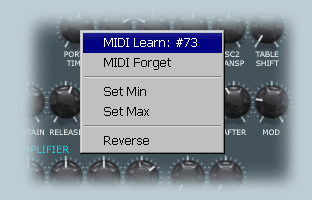
| MIDI LEARN | Select this option to assign a MIDI continuous controller. After selecting MIDI Learn, the desired control message should be sent to T2. It will immediately start controlling the knob/light. Learned control will be shown in the menu on next Shift-RClick |
| MIDI FORGET | De-assign all controllers to selected knob/light. |
| SET MIN | Sets the minimum value this control will reach. T2 will scale incoming control messages from Min to Max value. Selected value will be shown in next Shift-Click on the control as a 0~1 value. Set Max option will not appear for light indicators. |
| SET MAX | Sets the minimum value this control will reach. T2 will scale incoming control messages from Min to Max value. Selected value will be shown in next Shift-Click on the control as a 0~1 value. Set Max option will not appear for light indicators. |
| REVERSE | Reverses the operation of this control. |
It is possible to assign the same MIDI continuous controller to several knobs in the front panel (in fact, it would be possible to assign one controller to all knobs if desired). To get this, just Shift-Left Click on several controls and select MIDI Learn, and then send a MIDI CC to T2. All selected controls will be assigned to it.
Also, is
possible to assign more than one MIDI CC to a simple T2 control by repeatedly
selecting MIDI Learn and sending different MIDI CCs to it.
Both Aftertouch and Pitchbend can be used as MIDI Controllers. When pitchbend
is assigned as controller, the assigned control will have a bipolar movement
and the center will be calculated as the average between min and max assigned
value.
NOTE: T2
will show only the first learned controller for every control when Shift-RClicking
the control again.
MIDI Controls #120 (All sounds off), #123 (All note off), and #32 (Bank
Change) have special functions, so they can’t be assigned.
MIDI Controls #1 (Modulation Wheel) and #64 (Sustain Switch) will be learned,
but they will keep their assigned function.
Notice that in the case of Modulation Wheel assignment in the front panel (Pitch LFO, Filter LFO, Amp LFO, Filter), these are remembered for every program, while MIDI Learned controls are global (all programs).
While assigning a knob to a controller, be careful of starting your sequencer after selecting MIDI Learn. According to the sequencer settings, it could send several MIDI #CCs when starting to reset their status, and one of them could be learned instead of desired one.
| microHost, stand-alone operation |
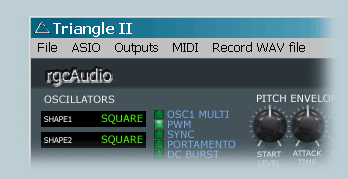
ASIO card owners will be able to play T2 in stand-alone mode. The microHost is a file called Triangle II.exe, which must be in same folder as Triangle II.dll to work. This host features:
|
ASIO and MIDI selector. Last configuration will be remembered. |
|
48 kHz sample rate. |
|
Output selector for ASIO |
|
Load and Save bank/preset files (.fxb/.fxp) |
|
A Virtual keyboard which allows to play polyphonically T2 with the PC keyboard |
|
Keys ZSXDCVGBHNJM,L.Ñ-Q2W3E4RT6Y7UI9O0P'`+ are used as note on/off |
|
Spacebar = Aftertouch (0 and 127) |
|
Left-Right arrows = Pitchbend (Left -8192, Right 8192) |
|
Up arrow = Modulation Wheel (0 and 127) |
|
Down arrow = Breath (0 and 127) |
|
ESC = All note off |
|
F11-F12 = Previous-Next preset |
|
F5-F8 = Octave down-up (up to ±3 octaves) |
|
F6-F7 = Transpose down-up (up to ±36 semitones) |
|
Saves 16-bit and 32-bit standard wave files to disk. |
|
Only 100k size. |
| Version Story |
v1.01,
06-04-2002
BUGFIX: Selection
passing program 128 crashes some hosts.
BUGFIX: Graphic redraw on SONAR/fxpansion DX-VST adapter.
MINCHG: CC#7 is not hardwired to Volume anymore, and can be learned.
© 2002
rgcAudio Software
- VST PlugIn Interface Technology by Steinberg Soft- und Hardware GmbH.
- ASIO Interface Technology by Steinberg Soft- und Hardware GmbH.